
Why Your OBD GPS Tracker Is Not Updating Location: Real Fixes
-
01
Power loss at the OBD port causes most trackers to stop updating
-
02
A frozen location usually points to cellular issues, not GPS failure
-
03
Garages and tunnels block GPS signals without harming the device
-
04
Long update intervals can make a working tracker look inactive
-
05
Reseating the tracker or testing another vehicle isolates the cause
As an Amazon Associate, Konnect GPS earns from qualifying purchases.
Why Is Your OBD GPS Tracker Not Updating Location?
When an OBD GPS tracker is not updating location, it feels more stressful than it should. One minute you're checking a location, the next minute nothing moves. Just silence.
This problem turns up constantly on personal cars, fleet vehicles and rental units, and most of the time the cause is predictable: power at the OBD port, cellular network issues, GPS signal problems, or reporting rules that aren't obvious on the screen. The tricky part is that a tracker not updating looks nearly identical no matter which of those is behind it.
Sometimes it shows the last location. Sometimes it updates only while driving. Other times it looks online but freezes.
In this guide, I'll walk you through how I troubleshoot these situations in the field, step by step. We'll break down what “not updating” actually means, how trackers send data, and how to pinpoint the real cause without overthinking it.
What “Not Updating” Actually Looks Like in Real Life
Before fixing anything, identify which version of “not updating” you're dealing with. People skip this constantly, and it usually sends them chasing the wrong problem. These are the three patterns that come up most.
A. Shows the last location only

You open the tracking platform and the vehicle is still sitting at a spot from hours ago, or yesterday. Frustrating, yes. Broken? Not necessarily.
Drivers will tell you “it hasn't moved all day,” and then it turns out the car has already been driven twice. When a tracker freezes like this, it usually means the device recorded a position before updates stopped, not that the device died.
B. Updates only while driving
This one comes up weekly. The tracker starts working again the moment the vehicle moves. Park it, shut the engine off, and updates disappear. Start driving and everything looks normal again.
That pattern feels random, but it is almost always tied to how the OBD2 port and the vehicle battery behave, not to the tracking device.
C. Appears online, but the timestamp never changes
This one confuses people the most. The app says the device is online, there's no offline alert, and the timestamp just sits there frozen. People assume the platform is broken. In reality the device is usually powered but stuck somewhere in the reporting process.
Each pattern points to a different underlying cause, and guessing too early only makes the process longer.
How Does an OBD GPS Tracker Send Updates?
An OBD GPS tracker sends updates through a simple chain: power from the vehicle, a GPS location fix, a cellular connection, then the app. If any one link breaks, updates stop. That's the whole system in one line, and it's the exact order worth checking every time.

GPS lock: also called a satellite fix. The device has to hear from enough satellites to calculate a position before it has anything to send. A tracker can be powered and connected to the network and still have no usable location, which is exactly why a frozen map does not mean a dead device.
The Real Reasons Your Tracker Is Not Updating Location
When a tracker goes quiet, don't start with the signal or the app. Start with power. In real-world installs, power problems cause more “tracker not working” reports than everything else combined, and most of them don't look like power problems at first.
1. Losing Power at the OBD Port
OBD GPS trackers rely entirely on power from the vehicle's OBD2 port. If that power drops even briefly, updates stop with no warning. People say “it worked fine yesterday,” and they're right. Nothing changed with the device. The vehicle's behavior did.

-
Ignition-controlled ports
Many vehicles cut power to the OBD2 port when the engine is off, so the device shuts down the moment you park. The tracker works perfectly while driving and looks dead later. Common on newer cars and fleet vehicles trying to protect the battery.
-
Delayed power cuts
Some vehicles wait a few minutes before cutting power, sometimes longer. The tracker updates once or twice after parking, then stops. That delay is why people blame the platform.
-
Loose or inactive ports
Half-seated devices barely making contact, ports damaged by previous devices, accessories sharing the port, or a partly failed fuse. Hit a pothole, vibration shifts the device, power drops.
Worth knowing: when a tracker cuts out this way it is rarely the device. It is the connection quietly failing at the port.
2. Cellular Network Issues
If power checks out, the next place to look is the cellular network. Be clear on the distinction: this is not GPS, this is data transmission. Plenty of devices know exactly where the vehicle is and simply cannot send that information anywhere.

- Weak or unreliable signalUnderground garages, tunnels, rural areas with thin coverage, and industrial zones where signals get noisy. The device still collects location, it just can't push it out yet.
- SIM or data plan problemsAn activation issue, wrong APN settings, or a suspended plan. The device powers on and looks normal but never reports. People replace perfectly good hardware over this.
- Outages nobody announcesCarriers don't flag every small outage. Multiple devices going quiet at once and resuming an hour later is the signature.
- Batched uploadsMany devices buffer data when the connection drops and upload everything at once when it returns. A string of old locations appearing together is the device working as designed.
So if a tracker corrects itself later without you touching anything, cellular is often the reason. The data existed. It just couldn't travel when you were looking.
3. GPS Signal Loss or Obstruction
If power is steady and the connection is fine, the next issue is GPS reception. This one tricks people, because the tracker can look alive while the location quietly freezes.

- No satellite lockWithout a fix the device doesn't know where the car is, even with everything else working. The last known position just sits there.
- Garages, tunnels and metalGPS signals are weak by design and don't travel through concrete and steel. Underground parking, dense structures and metal-heavy compartments all block them.
- Windshield coatingsSome vehicles use metalized or UV-coated glass to cut heat and glare, and those coatings interfere with reception. A tracker can work perfectly in one car and struggle in another for this reason alone.

GPS issues are common and usually situational. Once the vehicle moves into open sky, updates often resume on their own.
4. Firmware Damage or Software Glitches
Once power, cellular and GPS are ruled out, look inside the device. Firmware problems aren't the most common cause, but they're maddening because everything looks normal from the outside.
- Corrupted firmwareThe device powers on and looks fine, but internal corruption stops it processing or sending new location data.
- Failed or partial updatesAn update that starts and never finishes, usually because of power loss or a dropped connection, leaves the tracker stuck with no obvious error.
There's a reason power cycling fixes this more often than people expect. Unplugging the tracker forces the firmware to restart cleanly, which clears a temporary hang or memory glitch.

- More likelyWhen the tracker was recently updated, moved between vehicles, or lost power unexpectedly.
- Less likelyWhen the problem started gradually or only happens in certain locations.
- UnlikelyWhen several devices fail at once, which points back at the network or the platform.
5. Configuration or Installation Errors
A lot of “not updating” cases come down to settings. This isn't about blaming anyone, and these are mistakes anybody makes during an install. Everything can be powered, connected and healthy and still behave in a way that feels wrong if the configuration doesn't match how the vehicle actually gets used.

-
Movement-only rules
The tracker reports only when the vehicle moves, so a parked vehicle shows nothing new even though nothing is wrong.
-
Long reporting intervals
Updates set to every 5, 10 or 30 minutes make short trips and frequent checks feel like missed data.
-
Ignition-based settings
Reporting pauses with the engine off and resumes when it starts. A common fleet setup.
-
Partial insertion
The device looks plugged in but isn't fully seated, causing intermittent loss without fully cutting power.
Most of these settings exist for good reasons. They save battery, cut data usage and keep tracking clean, especially for fleets. The problem is that the behavior doesn't match what you expected to see.
6. Port and Vehicle Compatibility
This is the least common cause, which is exactly why it belongs at the end. It's a last check, not a first panic. Most of the time a tracker works across vehicles fine, but occasionally the vehicle itself is the limiting factor.

- Non-standard port layoutsPorts tucked behind trim, angled awkwardly, or too tight for a stable connection, so the device looks plugged in but loses data with vibration.
- Vehicles that limit port power or dataSome cars reduce port power, restrict data access with the engine off, or use ECU behavior that doesn't fully support tracking devices.
When this happens the tracker isn't malfunctioning. It's running into rules the vehicle won't bend, and that behavior is often tied to the vehicle's OBD2 protocol. See what the OBD2 protocols are and how they affect tracker compatibility.
Why testing in another vehicle helps
This is the go-to sanity check. If the same device works normally in a different car, you've immediately ruled out firmware, SIM, cellular and platform problems. At that point the issue is how that specific vehicle handles its port. Moving a device to another car has solved mysteries in five minutes after hours of guessing.

Nine times out of ten a tracker that went quiet is not broken, it is unpowered. Check the port before you check anything else, and you will save yourself an afternoon.
If You'd Rather Not Revisit This Problem

Konnect OBD2 GPS Tracker
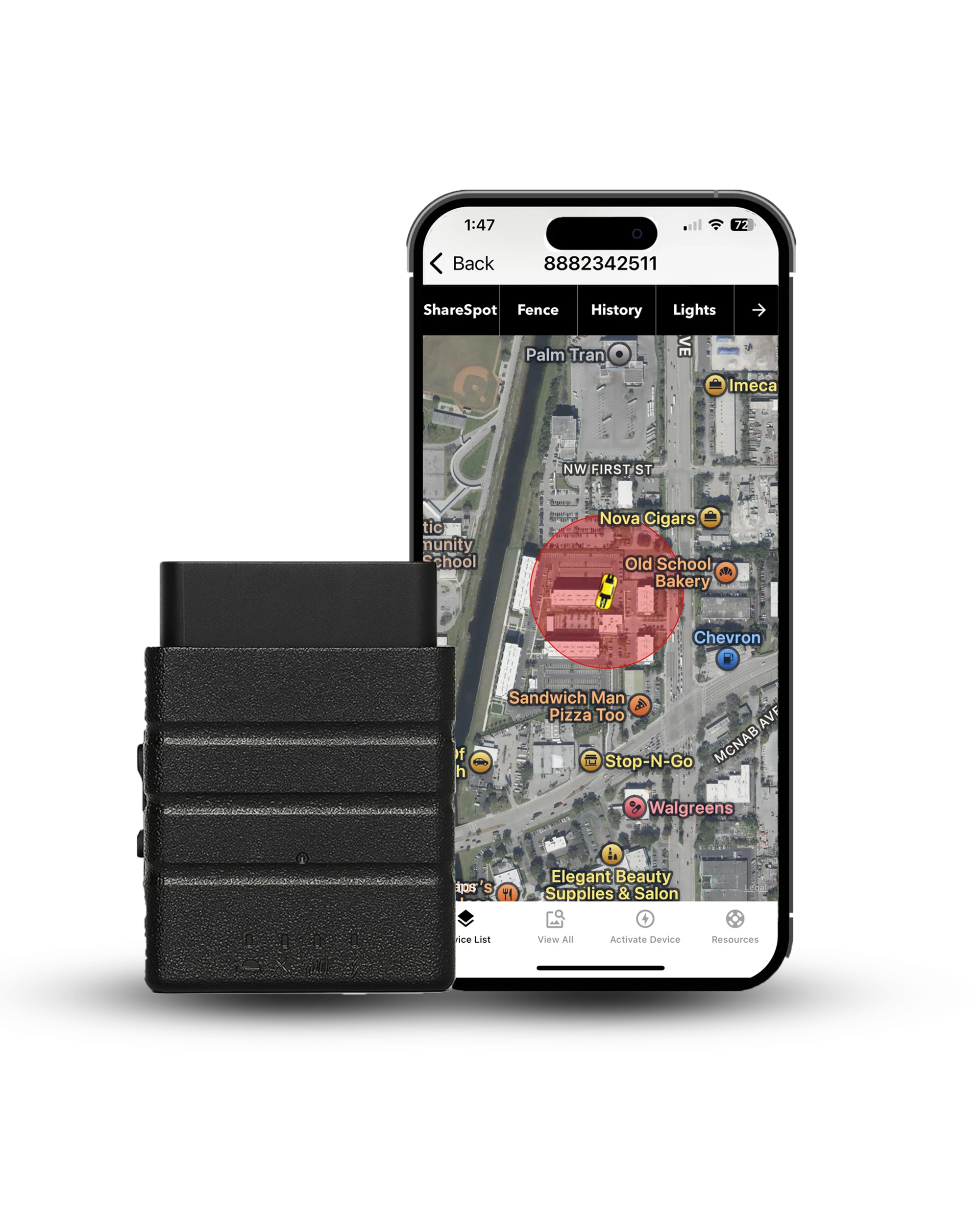
A pure real-time GPS tracker. Konnect refreshes every 3 seconds, so a stalled map is obvious in seconds rather than hours, and a tamper alert fires the moment the device is unplugged, with roughly 15 minutes of backup reporting after that.
- 3-second live updates
- Tamper and unplug alerts
- 15-minute backup battery
- Geofencing
- Speed alerts
- 1 year trip history
- Lifetime warranty
- USA-based support
When a Tracker Is Working But Looks Broken
Your tracker can be working exactly as designed while sleep modes, idle rules and ignition-based reporting make it look like it stopped. Most people at this stage think something is wrong, and it isn't.

-
Sleep modes
When a vehicle sits still, many devices go quiet on purpose to protect the vehicle battery.
-
Idle thresholds
No movement means no new updates, even though the device is powered and ready.
-
Ignition logic
Engine off often means paused reporting, especially with OBD2-based trackers.
-
Fleet versus personal
Fleet vehicles follow stricter reporting rules, so a parked vehicle can look inactive entirely by design.
Once you recognize these patterns, you stop chasing problems that aren't there.
LED Lights and App Status Indicators
The lights on the device and the status in the app tell you which part of the chain is failing. They're the fastest diagnostic you have, and they're worth reading before you touch anything.

-
Power-only indicator
A basic power light and nothing else means the device has power but isn't getting further. Send yourself straight to the power section. Accessories sharing the port or a splitter can interfere here too.
-
GPS searching
A blinking or cycling GPS light means the device is trying for a satellite lock and hasn't got one. Look at where the vehicle is parked.
-
Cellular failure
GPS activity but the app shows offline points at data transmission, not location. Weak coverage, a carrier hiccup, or a SIM and APN problem.

Tip: the biggest mistake is treating the lights as vague warnings. They are directional clues. Match the pattern to the right cause, confirm it, and move on. That alone can halve your troubleshooting time.
How Do You Troubleshoot a Tracker That Isn't Updating?
Check symptoms first, then confirm power, signal and installation in a simple top-down order. Skipping steps creates more confusion than clarity. Here is the exact order, because it eliminates guesswork instead of adding to it.

- Match what you're seeing to a patternOld location, updates only while driving, or online with no new data. This keeps you from fixing the wrong problem.
- Check power behavior firstConfirm the device is fully seated, and note whether it loses power after the engine goes off. Power explains more failures than anything else.
- Move the vehicle into open spaceOut of the garage or tunnel. Poor reception freezes updates even when everything else works.
- Watch the LED lights for two to three minutesIndicator meanings don't show instantly. A brief pause reveals whether the device is searching, stuck on power-only, or failing to connect.
- Take a short driveA quick drive confirms ignition rules, movement-only updates and lock behavior. More mystery issues clear up here than at any other step.
- Reseat the trackerUnplug, wait a few seconds, plug back in firmly. This clears temporary software hangs and fixes partial connections.
- Test it in another vehicleIf it works normally elsewhere, you've ruled out firmware, SIM and platform. The original vehicle becomes the focus.
When the Problem Isn't Your Tracker at All
Sometimes the device is working correctly and something outside it is blocking updates temporarily. In those cases waiting is the smartest move, and chasing fixes only adds stress.

- Carrier outagesMultiple vehicles going quiet at once and resuming later without any change on your end.
- Platform delaysThe device is sending, the platform is refreshing late. Timestamps lag, then locations jump forward or arrive in a batch.
- Coverage dead zonesRural roads, industrial areas, underground parking and long highway stretches. Always check where the vehicle was when updates stopped.
- Why waiting helpsIf power, reception, configuration and indicators all look normal, waiting 15 to 30 minutes often prevents an unnecessary reset or device swap.
If updates resume without you changing anything, that's usually confirmation the tracker was fine all along.
Fleet Owner Notes

Fleet trackers follow stricter rules than personal vehicles, so parked time, reporting intervals and monitoring habits matter more than people expect. Fleet behavior looks different by design, and that's where the confusion creeps in.
- Idle vehicle behaviorMany fleet vehicles pause updates when parked to cut noise and protect the battery. A quiet vehicle is not automatically a failed tracker.
- Reporting intervalsFleets often run longer intervals to control data usage. Short trips plus long intervals look like missed updates when nothing is wrong.
- Health monitoring habitsWatch device health signals such as last check-in and power status rather than refreshing the map all day. It's the faster way to spot a real issue.
If the same device repeatedly drops offline across different vehicles and routes, that's the point to involve support with specifics. Fleet tracking works best when you judge patterns rather than single moments.
What to Do If It Still Isn't Updating
If the tracker still isn't updating after all of that, stop repeating resets and gather the right details before escalating. Guessing hurts more than it helps at this stage, and one clear detail often solves in minutes what ten unplug cycles won't.

Before you contact support, take two minutes and write down:
- Last reported locationAnd the timestamp on it.
- Parked or movingWhat the vehicle was doing at that moment.
- LED stateWhat the indicators were showing.
- Another vehicleWhether the device works when moved.
- Recent changesNew car, firmware update, or a long idle period.
Support will ask for all of this anyway, so leading with it skips the entire first round of back-and-forth.
Final Thoughts
If your OBD GPS tracker is not updating location, it usually isn't a mystery and it's rarely a dead device. In most cases it comes down to power at the port, signal conditions, reporting rules, or timing. Slow down, check those in order, and the problem almost always makes sense.
What trips people up is rushing: resetting too much, swapping hardware too early. Most of the time the tracker is doing exactly what it's allowed to do, even if that looks wrong at first glance.
Work the process in order. Match the symptom, confirm power, check signal, verify settings, and escalate only if needed. Quiet doesn't always mean broken. Sometimes it just means the tracker is waiting for the right conditions to report again.
Stop Guessing at the Silence
Fast updates make a problem obvious immediately. Tamper alerts tell you when an unplug is deliberate. And USA-based support means a person on the phone rather than a ticket queue.
About the Author

 Buy on Amazon